Get started
Get started
Installation Guide
- Find a complete installation guide on the Unity website: Get started with Unity
- Download and install the Unity Hub
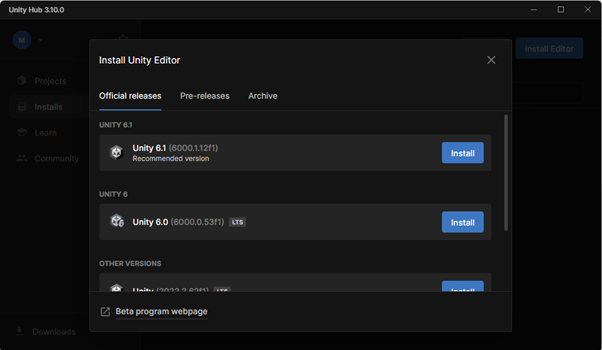
- Choose your Unity version: this course is built with Unity 6.3 LTS. Install the latest 6000.3.x LTS version available in Unity Hub. At the time of checking, 6000.3.15f1 is the current patch release.
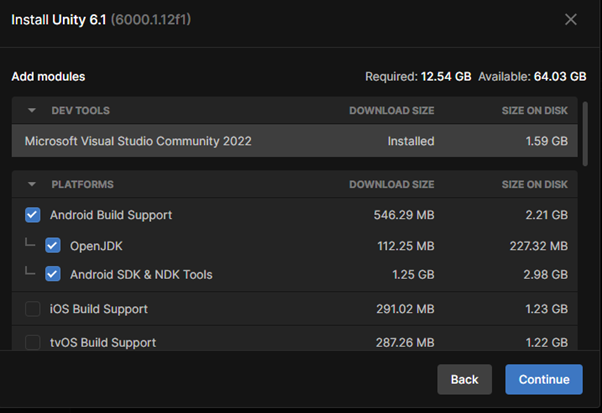
- Make sure to install everything that is needed for Android Build Support, as we will integrate mobile AR experiences later on:
Unity version for Flutter integration
Unity also publishes newer Update releases, such as 6000.4. For this course, use Unity 6.3 LTS because it is the latest LTS line that matches the currently documented Flutter embedding plugin support.
Android SDK for the AR integration
For the Unity - Vuforia - Flutter integration, use Android SDK Platform 34. Do not use SDK/API 36 for this course setup, because it currently causes build issues in the embedded Unity/Vuforia Android project. The Flutter integration chapter pins compileSdk and targetSdk to 34.
Creating our first project
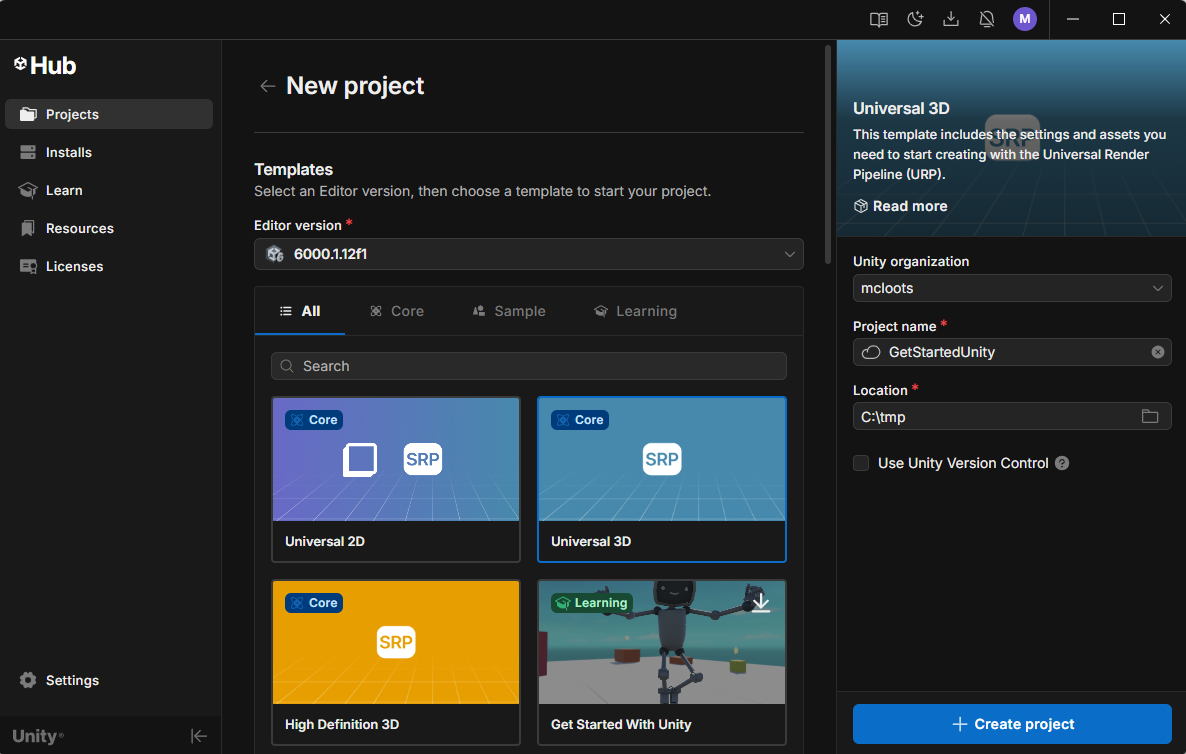
To get familiar with the ins and outs of Unity, let's create our first project. Open the Unity Hub, select New project and choose the Universal 3D template. Enter a name for the project and click Create project.
GitHub repository
When creating a new Unity project, you can immediately connect it to a GitHub repository. This makes it easier to keep a backup, work on the project on another computer and submit your work.
Warning
Creating a project might take some time as Unity does a lot of work behind the scenes!
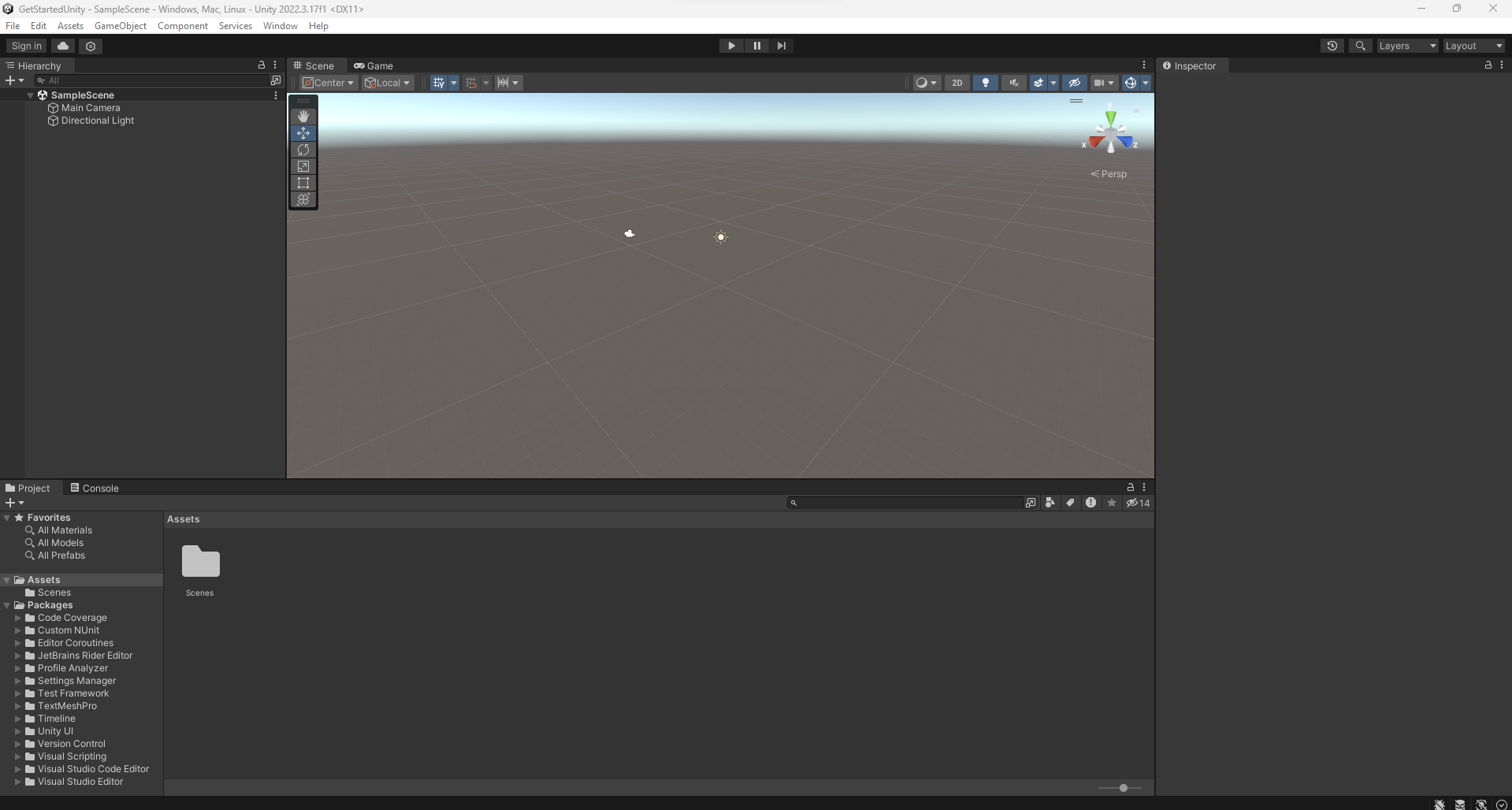
When finished, we get to see Unity in its full glory. No panic if this feels overwhelming! We'll get to all the panels, windows, shortcuts, ... in the next chapter.