Run Unity/Vuforia app on Android
About 3 min
Run Unity/Vuforia app on Android
Let's build the Single image tracking project and run it directly on an Android phone. Use the course setup: Unity 6.3 LTS and Vuforia Engine 11.4.4.
Select Android and include your scene
- Open the scene containing your ARCamera, ImageTarget and 3D model, and save it.
- Check that the App License Key is filled in under Vuforia Engine Configuration.
- Go to File > Build Profiles. In older Unity versions, this window is called Build Settings.
- Select Android and click Switch Platform. If you use a custom Android build profile, make it active with Switch Profile.
- Wait until Unity finishes importing assets for Android.
- Open the Scene List in Build Profiles and click Add Open Scenes if your scene is not listed yet.
- Make sure your AR scene is checked and is the first enabled scene in the list. Remove or uncheck any unused sample scenes.
Configure Player Settings
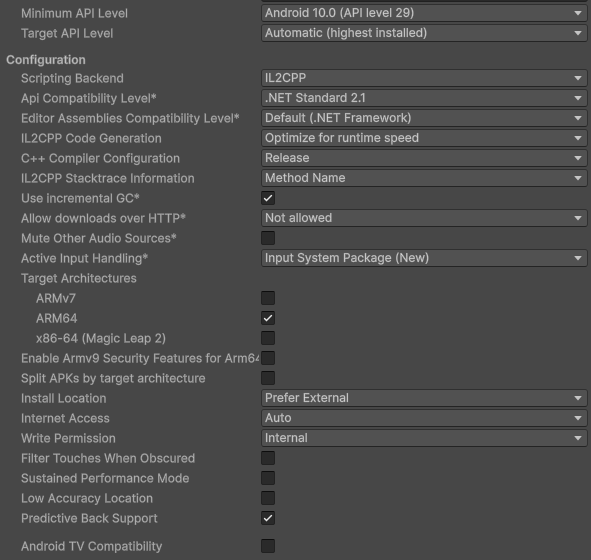
In Build Profiles, open Player Settings, select the Android tab and expand Other Settings.
Identification and configuration
Set the following values:
| Setting | Value |
|---|---|
| Package Name | A unique identifier, for example be.thomasmore.vuforiaapp |
| Minimum API Level | Android 10.0 (API level 29) |
| Target API Level | Automatic (highest installed), using the SDK installed with this Unity Editor |
| Scripting Backend | IL2CPP |
| Target Architectures | Select ARM64 and uncheck ARMv7 and any other architectures |
The minimum API level determines the oldest Android version on which the app can be installed. For this course setup, use a physical ARM64 Android phone running Android 10 or newer that supports Vuforia.
Graphics API
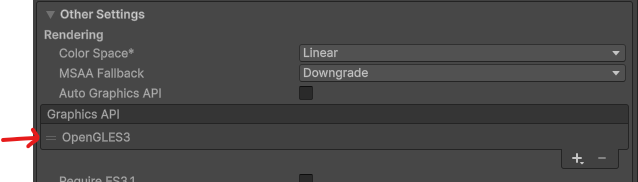
- Under Other Settings > Rendering, disable Auto Graphics API.
- Keep OpenGLES3 in the Graphics APIs list.
- Remove Vulkan and any other entries so that OpenGLES3 is the only graphics API.
Prepare your Android phone
- On your phone, open Settings > About phone and tap Build number seven times to enable Developer options. The exact location can differ between phone brands; Build number may be under Software information.
- Open Developer options and enable USB debugging.
- Connect the phone to your computer with a USB cable that supports data transfer, and unlock it.
- Accept the Allow USB debugging? prompt on the phone.
- In Unity's Android Build Profiles window, select your phone under Run Device. Use Refresh if needed.
Build and run
- In the Android Build Profiles window, configure these options:
- Export Project: disabled, so Unity builds the application itself.
- Build App Bundle (Google Play): disabled, so Unity creates an APK for local installation.
- Development Build: optional; enable it if you need a development build for debugging.
- Click Build And Run.
- Choose an output location, for example a
Builds/Androidfolder in your Unity project, and name the fileVuforiaApp.apk. Keep generated builds outside theAssetsfolder. - Wait for Unity to build, install and launch the application on your selected phone. The first IL2CPP build can take some time.
- Allow camera access when the app asks for permission.
- Point the phone's camera at your image target, printed on paper or displayed on another screen. Your 3D model should appear!
Continue with Flutter
First check that image tracking works on the phone. Then continue with Flutter integration. That chapter enables Export Project to export a Unity library for Flutter. Leave it disabled when building this standalone APK.
Troubleshooting
| Problem | What to check |
|---|---|
| Android is unavailable in Build Profiles | Install Android Build Support for the exact Unity Editor version you are using. |
| Phone does not appear under Run Device | Check the data cable, USB debugging and authorization prompt. On Windows, install the manufacturer's USB driver if needed. |
| Build And Run is unavailable | Activate Android, disable Export Project and select a connected phone. |
| SDK, NDK or JDK error | Check External Tools and use the tools installed with your Unity Editor. Read the first relevant error in the Console. |
| Black screen or no camera image | Check camera permission, the ARCamera, the Vuforia license key, Activity and OpenGLES3. |
| Camera works but the model does not appear | Check the selected image target database, the model's position and scale, and that the model is a child of the ImageTarget. Use a well-lit target. |