
Flutter integration
Flutter integration
Let's integrate our Unity-Vuforia AR scene into a Flutter application
Tested version combination
Use this combination for the course:
| Tool | Version |
|---|---|
| Flutter | 3.44.0 |
| Unity | Unity 6.3 LTS, latest 6000.3.x patch |
| Vuforia Engine | 11.4.4 |
| Flutter Unity embedding | flutter_embed_unity 2.0.0 |
| Android SDK for this integration | API 36 |
Vuforia 11.4.4 supports Unity 6 LTS from 6000.0.38f1 onward, and flutter_embed_unity currently documents support for Unity 6000.0 and 6000.3 LTS on Android. That makes Unity 6.3 LTS the best course choice for this integration.
Do not use Unity 6000.4 for this course integration yet
Unity 6000.4 is a newer Update release, but the Flutter embedding plugin documentation currently lists Unity 6000.0 and 6000.3 LTS support. For the Flutter - Unity - Vuforia integration, stay on Unity 6.3 LTS.
Flutter version 3.44.0
- We tested and verified everything with Flutter version 3.44.0
- We cannot guarantee that the Vuforia integration works with newer Flutter versions
- For the least troubles: make sure to use this version when playing around with Vuforia!
Use Flutter version 3.44.0
If you've already installed another version of the Flutter SDK, you can check out the 3.44.0 version.
The Flutter SDK is a GitHub Repo, which allows you to perform the following commands in the Flutter SDK location
- Open a terminal in the Flutter SDK folder
- Execute the command
git checkout v3.44.0
The
flutter --versioncommand should give an output similar to the below:
flutter --version

Flutter 3.44.0 - channel stable - https://github.com/flutter/flutter.git
Tools - Dart 3.x - DevTools 2.x
Create the Flutter application
- Create a new Flutter application (you should already know how!)
- Add the
flutter_embed_unitypackages to thepubspec.yamland save the file!
dependencies:
  flutter:
    sdk: flutter
  flutter_embed_unity: ^2.0.0
- As an example we use the EmbedUnity widget directly in our main.dart file
lib/main.dart
import 'package:flutter/material.dart';
import 'package:flutter_embed_unity/flutter_embed_unity.dart';
void main() {
runApp(const MyApp());
}
class MyApp extends StatelessWidget {
const MyApp({super.key});
// This widget is the root of your application.
Widget build(BuildContext context) {
return MaterialApp(
title: 'Flutter Demo Test',
theme: ThemeData(
colorScheme: ColorScheme.fromSeed(seedColor: Colors.deepPurple),
),
home: Scaffold(
body: Column(
children: [
Expanded(
child: EmbedUnity(
onMessageFromUnity: (String message) {
// Receive message from Unity
},
),
),
ElevatedButton(
onPressed: () {
// Send message to Unity
sendToUnity(
"MyGameObject", // Game object name
"SetRotationSpeed", // Unity script function name
"42", // Message
);
},
child: const Text("Set rotation speed"),
),
],
),
),
);
}
}
Install the Flutter plugin in Unity
- Now open the Unity project
- If this Unity project does not have Vuforia installed yet, add the course Vuforia package via
Window > Package Manager > + > Add package from git URL...:
https://github.com/mcloots/vuforia_package_11.4.4.git
- Install AR Foundation via Window - Package Management - Package Manager - Unity Registry
- Download the Flutter plugin
flutter_embed_unity_6000_0.unitypackageat the following link - Make sure the unity project is open and double click to install the
flutter_embed_unity_6000_0.unitypackage - Follow the steps to import it in Unity
- When you see the Flutter Embed menu item appearing in Unity, the installation is done!
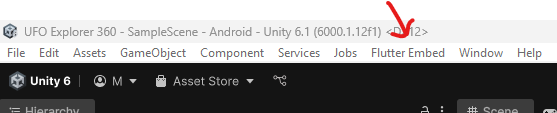
Configurations to be made
Unity project
Before we can export our unity project to our flutter app, we have to configure some settings
- Open a script (doesn't matter which one) in VS Code. This way we can navigate to a Flutter Embed script that we need to modify:
Assets\FlutterEmbed\Editor\ProjectExportChecker.cs- Find and remove the
!architectures.HasFlag(AndroidArchitecture.ARMv7) || - Save your script!
- Go to
File > Build Profiles- Choose Android and Switch Platform
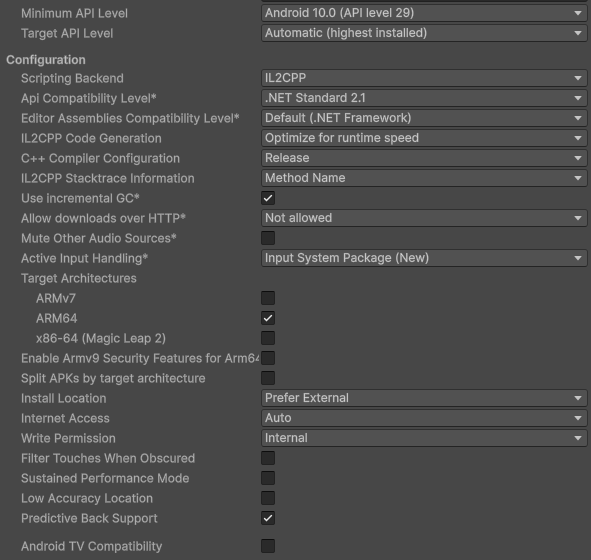
- Choose Android and Switch Platform
- Open the
Player Settingsand change the following under theOther settings > Configuration section:- Change
Configuration - Scripting Backendto IL2CPP Target Architectures, only select ARM64 (uncheck ARMv7)- Set the minimum API Level to Android 10.0 (API level 29)
- Set the target API Level to Automatic (highest installed)
- Change
- Now open the Player Settings
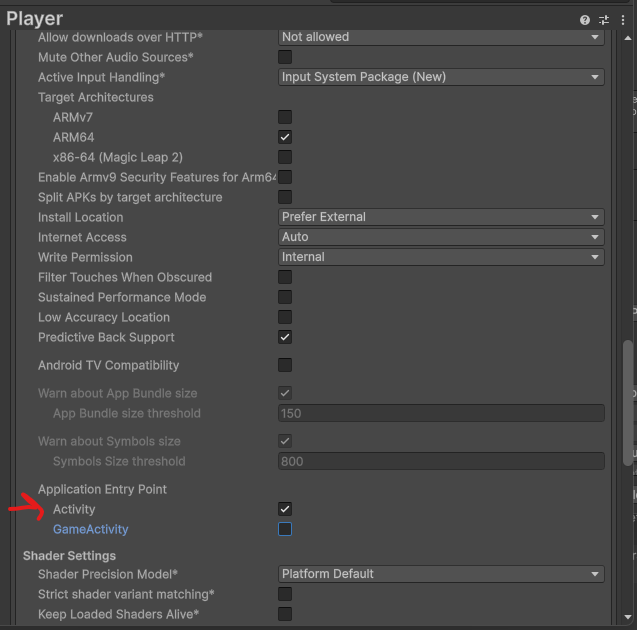
- Make sure to select Activity as Application Entry Point
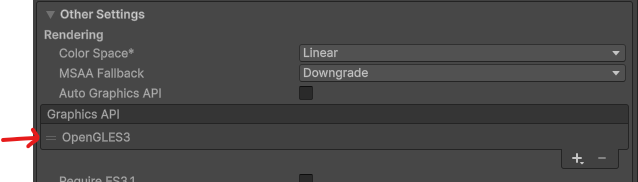
- Find the Graphics API and make sure OpenGLES3 is the only option here (delete Vulkan if present!)
- Make sure to select Activity as Application Entry Point
- At last tick the Export Project checkbox in the Build Profiles window
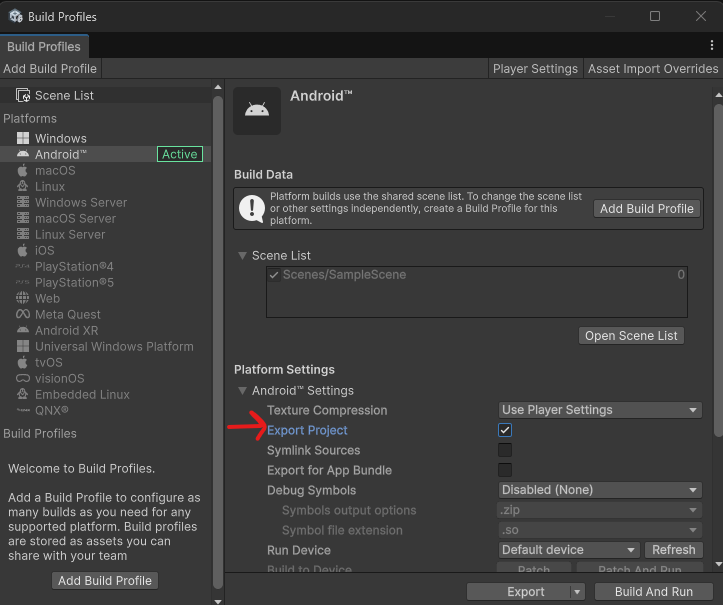
- Export the unity project by clicking on the
Flutter Embedmenu item and choose Android.- Select the appropriate folder
- This must be your-flutter-project/android/unityLibrary
- The build might take some time!
- Select the appropriate folder
Flutter application
The final steps need to be done in the Flutter application
- Go to
android\app\build.gradle.ktsand- Set the minSdk to 29
- Set the compileSdk to 36
- Set the targetSdk to 36
- Set the ndkVersion to "28.2.13676358" --> make sure to have this ndk installed, this can be checked in Android SDK Manager
- Add a dependency to the UnityLibrary project
plugins {
    id("com.android.application")
    // The Flutter Gradle Plugin must be applied after the Android and Kotlin Gradle plugins.
    id("dev.flutter.flutter-gradle-plugin")
}

android {
    namespace = "com.example.flutter_integration"
    compileSdk = 36
    ndkVersion = "28.2.13676358"

    compileOptions {
        sourceCompatibility = JavaVersion.VERSION_17
        targetCompatibility = JavaVersion.VERSION_17
    }

    defaultConfig {
        // TODO: Specify your own unique Application ID (https://developer.android.com/studio/build/application-id.html).
        applicationId = "com.example.flutter_integration"
        // You can update the following values to match your application needs.
        // For more information, see: https://flutter.dev/to/review-gradle-config.
        minSdk = 29
        targetSdk = 36
        versionCode = flutter.versionCode
        versionName = flutter.versionName
    }

    buildTypes {
        release {
            // TODO: Add your own signing config for the release build.
            // Signing with the debug keys for now, so `flutter run --release` works.
            signingConfig = signingConfigs.getByName("debug")
        }
    }
}

kotlin {
    compilerOptions {
        jvmTarget = org.jetbrains.kotlin.gradle.dsl.JvmTarget.JVM_17
    }
}

flutter {
    source = "../.."
}

dependencies {
    implementation(project(":unityLibrary"))
}
- Go to
android\settings.gradle.ktsand addinclude(":unityLibrary")andinclude(":unityLibrary:xrmanifest.androidlib")before including the app!
pluginManagement {
    val flutterSdkPath =
        run {
            val properties = java.util.Properties()
            file("local.properties").inputStream().use { properties.load(it) }
            val flutterSdkPath = properties.getProperty("flutter.sdk")
            require(flutterSdkPath != null) { "flutter.sdk not set in local.properties" }
            flutterSdkPath
        }

    includeBuild("$flutterSdkPath/packages/flutter_tools/gradle")

    repositories {
        google()
        mavenCentral()
        gradlePluginPortal()
    }
}

plugins {
    id("dev.flutter.flutter-plugin-loader") version "1.0.0"
    id("com.android.application") version "9.0.1" apply false
    id("org.jetbrains.kotlin.android") version "2.3.20" apply false
}

include(":unityLibrary")
include(":unityLibrary:xrmanifest.androidlib")
include(":app")
- Go to
android\build.gradle.ktsand add the highlighted code below
allprojects {
    repositories {
        google()
        mavenCentral()
        flatDir {
            dirs(file("${project(":unityLibrary").projectDir}/libs"))
        }
    }
}

val newBuildDir: Directory =
    rootProject.layout.buildDirectory
        .dir("../../build")
        .get()
rootProject.layout.buildDirectory.value(newBuildDir)

subprojects {
    val newSubprojectBuildDir: Directory = newBuildDir.dir(project.name)
    project.layout.buildDirectory.value(newSubprojectBuildDir)
}
subprojects {
    project.evaluationDependsOn(":app")
}

tasks.register<Delete>("clean") {
    delete(rootProject.layout.buildDirectory)
}
- Go to
android\gradle.propertiesand addunityStreamingAssets=
org.gradle.jvmargs=-Xmx8G -XX:MaxMetaspaceSize=4G -XX:ReservedCodeCacheSize=512m -XX:+HeapDumpOnOutOfMemoryError
android.useAndroidX=true
# This newDsl flag was added by the Flutter template
android.newDsl=false
# This builtInKotlin flag was added by the Flutter template
android.builtInKotlin=false
unityStreamingAssets=
Update ProGuard settings
- Go to
android\unityLibrary\proguard-unity.txt. - Find this line:
-ignorewarnings
- Remove the line or put it in comment:
# -ignorewarnings
Update MainActivity
- Go to
android\app\src\main\kotlin\com\example\<project_name>\MainActivity.kt. - Replace the content of the file with:
package com.example.flutter_integration

import com.learntoflutter.flutter_embed_unity_android.unity.FakeUnityPlayerActivity

class MainActivity : FakeUnityPlayerActivity()
Make sure the package line matches the package name of your Flutter project. For example, if your project uses another name than flutter_integration, update the package line accordingly.
Android < 13 with ARFoundation
If you create a Unity project that uses ARFoundation, Unity can crash on certain Android versions when ARFoundation is activated. This only happens on Android < 13.
This can be fixed by using FlutterFragmentActivity instead of FakeUnityPlayerActivity in android\app\src\main\kotlin\package-name\project-name\MainActivity.kt
package com.example.flutter_integration

import io.flutter.embedding.android.FlutterFragmentActivity

class MainActivity : FlutterFragmentActivity()
Run and be amazed!
- Contact your lecturers (or maybe first some AI agents) if you get a black screen.